Scrintime Help
Set up your family, pair a device, and manage screen time, websites and apps from your dashboard.
How it works
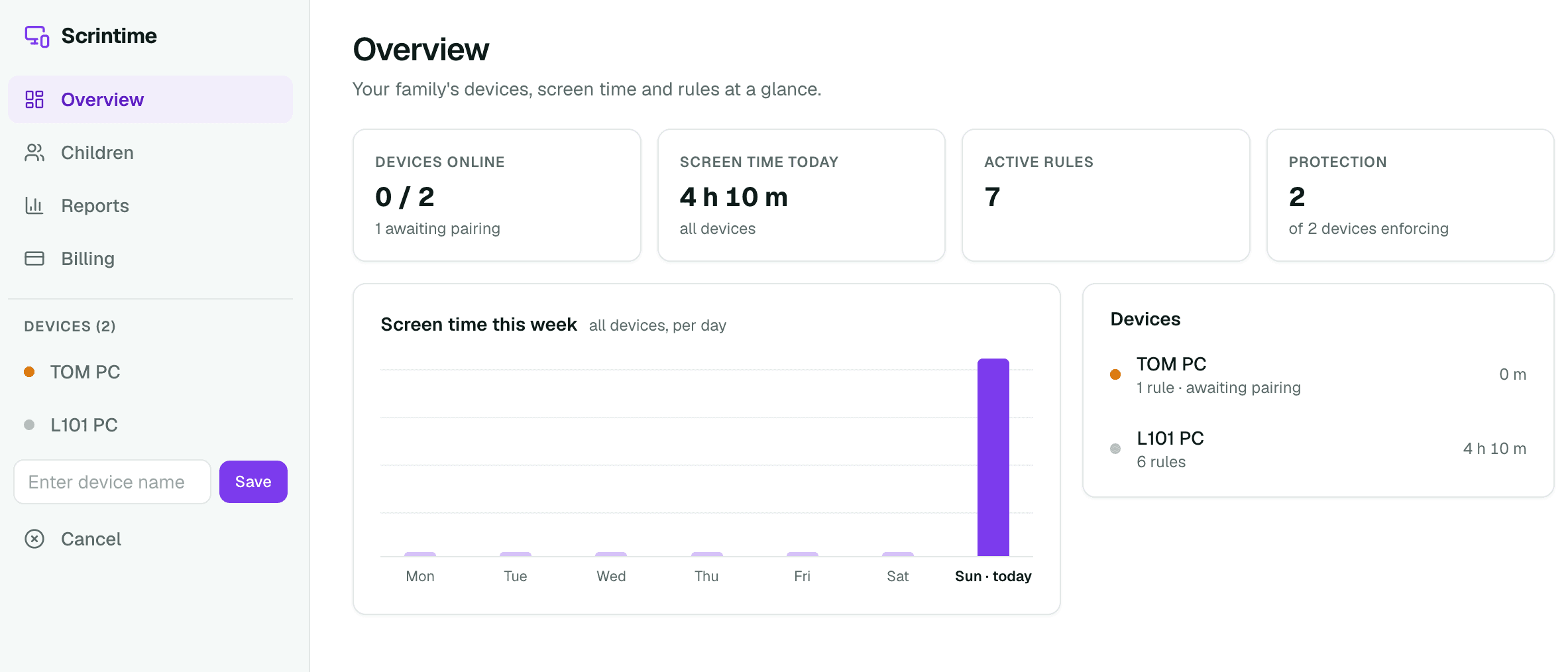
You set the rules in your dashboard. The Scrintime app on your child's Windows PC, Android device or iPhone applies them — even when the device is offline — and can't be closed or removed without your PIN. Changes you make usually reach the device within a couple of minutes.
Getting started
1Create your account
Sign up with your email address, or use “Continue with Google”, then confirm your email — you need to confirm before you can add devices.
2Set your PIN
Do this first. New accounts start with a default PIN. Choose your own 6-digit PIN in Profile before pairing anything. The PIN is what unlocks a locked screen and allows the app to be removed, so keep it private from your children.
3Add a device
Click Add device in the sidebar and give it a name (e.g. “Sam's laptop”). The device page shows a 12-digit assigning code and a QR code — you'll use one of them to pair.
4Install the app and pair
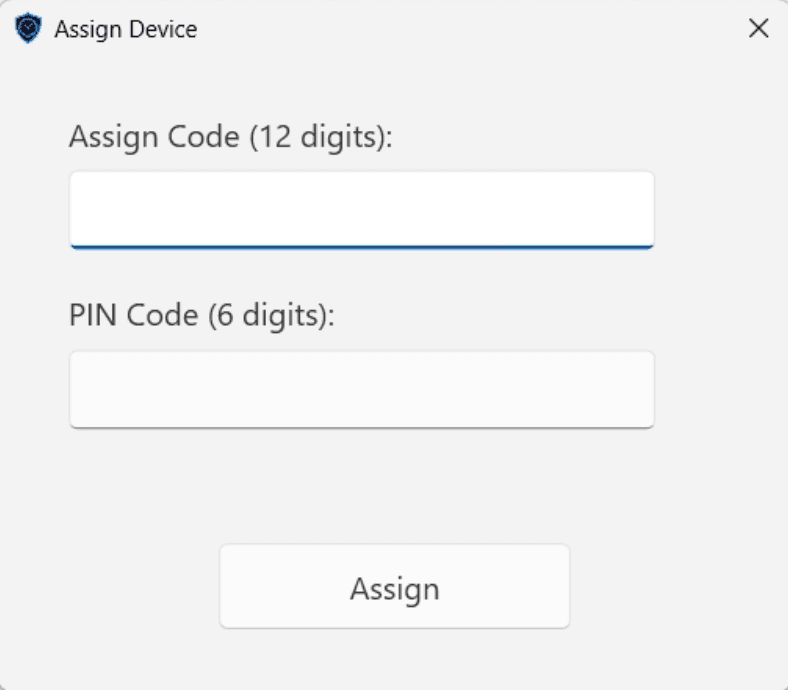
Windows PC: on the child's computer, open the download page and run the installer. It asks for administrator rights so it can block websites and keep running for every user of the PC. When the app opens, enter the assigning code and your PIN.
Android or iPhone: install Scrintime from Google Play or the App Store on the child's device, open it, and scan the QR code on the device page (or type the assigning code). Confirm with your PIN, then allow the permissions the app asks for — it explains what each one is for. Phones and tablets need a paid plan.
Within a minute the device shows as paired in your dashboard and you can start adding rules.
Children & co-parents
On the Children page, add each child and assign their devices to them. Their screen time is then shown together across all of their devices.
You can invite up to 4 co-parents from the account menu. Each gets their own login with full access to the family's devices, rules and reports. Only the family owner can invite or remove co-parents.
Limits & website blocking
Open a paired device and use Add Rule on the Rules tab. Each row in the list says what kind of rule it is.
1Screen-time limit
Caps how long the device can be used. One screen-time rule per device, which can be:
- Daily — a total number of minutes per day.
- Time window — use only allowed between set hours.
- Per day — a different limit for each day of the week.
Time doesn't count while the device is locked.
2Blocked categories
Block whole groups of websites at once (for example adult content or gambling) without listing sites yourself. We keep the lists up to date.
3Preset services and custom websites
Choose a preset to block a well-known service such as YouTube or Netflix, or add a custom URL for any other site. Both can have a schedule, so the block only applies at certain times — school hours or bedtime, say.
4When changes apply
Rules are saved as soon as you save them and reach the device the next time it checks in — usually within a couple of minutes. There's nothing else to send.
On Android, website blocking relies on a permission granted on the device. The Rules tab tells you whether blocking is actually running, and warns you if it has been switched off.
App limits
The Apps tab lists the apps installed on the device with how much each was used, most-used first. For any app you can set a daily time limit or block it entirely; Remove lifts the limit.
The list appears after the device's first sync, so a newly paired device may take a few minutes to show its apps.
iPhone: Apple doesn't allow apps to share which apps are installed. Open Scrintime on the iPhone and choose the apps to limit there instead.
Location
For Android devices and iPhones, the Location tab can show the device's last known position and recent history, with a link to open it in a maps app. Windows PCs don't report location.
Location is off until you turn it on. The device then asks for location permission at its next check-in, and nothing is recorded until that is allowed.
Everyday controls
1Lock or unlock instantly
Use Lock on a device to block it right now — for dinner, homework or bedtime — and Unlock to lift it. It takes effect at the device's next check-in.
2Grant extra time
On the Usage tab, add 15, 30 or 60 bonus minutes to today's limit. The same tab charts daily use against the limit.
3What your child sees when blocked
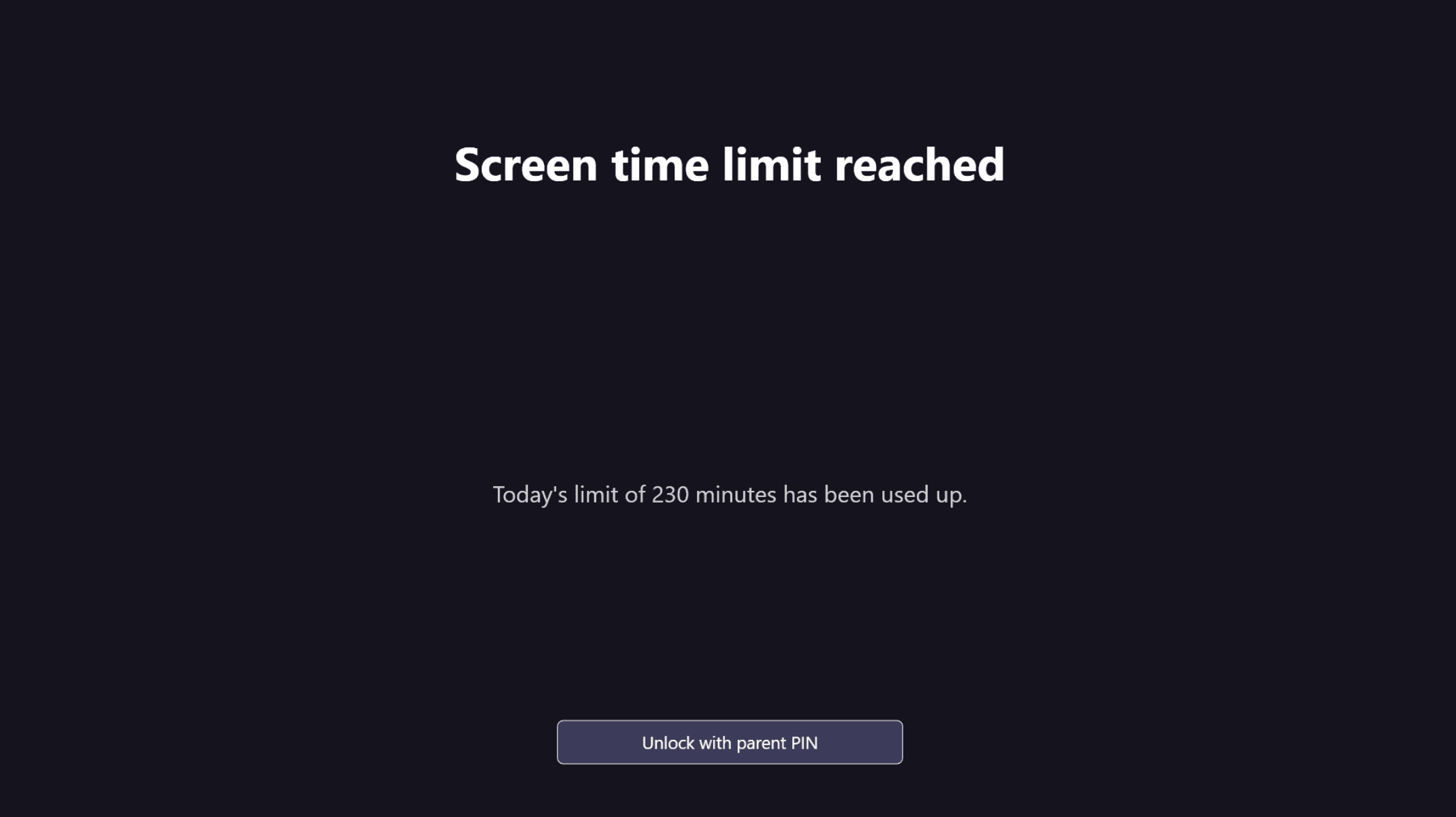
When a limit is reached or you've locked the device, a full-screen lock explains why. It can't be closed. Entering your PIN on that screen unlocks it and grants a short amount of extra time.
4Reports and emails
Reports shows screen time across your family over time. You can also get a weekly summary by email, and alerts when a device is paired or hasn't checked in for a week — choose which in Email preferences.
Your PIN
Your 6-digit PIN is needed to pair a device, unlock a locked screen, and remove the app. Choose one your children can't guess — not a birthday.
You can change it any time in Profile. Paired devices pick up the new PIN at their next check-in.
Removing the app
On Windows, uninstall Scrintime from Windows Settings → Apps. It asks for your PIN first, so a child can't remove it, and it undoes every change it made to the PC.
To stop managing a device altogether, also delete it from your dashboard — that frees up its slot on your plan.
Devices & plans
The Free plan covers 2 Windows devices. Paid plans add more devices and are needed for Android and iPhone. See current options in Billing — you can change or cancel at any time.
If you have more devices than your plan covers, the extra ones are marked in the dashboard and stop being protected after a grace period. Upgrade, or delete a device you no longer need.
Troubleshooting
My changes haven't reached the device
Devices collect changes when they check in, usually every couple of minutes. The device needs to be switched on and online. If it has been off, your changes apply as soon as it reconnects — the rules it already had stay in force in the meantime.
A device shows as offline
That means it hasn't checked in recently — it may be switched off, asleep, or without internet. Its existing limits still apply while offline. If it stays offline while in use, check the app is still installed on it.
Website blocking has stopped on an Android device
Blocking on Android uses a VPN connection on the device. Open Scrintime on the device, go to Permissions and allow web filtering again. Android only permits one VPN at a time, so another VPN app will switch ours off.
The Apps tab is empty
The device sends its app list the first time it syncs after setup. Check back in a few minutes. On an iPhone, apps are chosen on the phone itself.
Location isn't showing
Check that location is turned on in the Location tab, that the device has checked in since, and that location access was allowed on the device when it asked.
I've forgotten my PIN
Set a new one in Profile. Your devices start using it after their next check-in.
I can't add a device
Confirm your email address first, and check in Billing that you have a free device slot.
Need help?
Still stuck? Get in touch via the contact form. For how we handle data, see our Privacy policy.
Curious what the app does on your device? About the app